โลโก้กระทรวง
  รู้จักองค์กร
 เอกสารที่เกี่ยวข้อง
 โครงสร้างองค์กร
 ข่าวกิจกรรม
  ข่าวประชาสัมพันธ์
  งานวิชาการ
  งานวิจัย
  งานมาตรฐาน/คู่มือ
  บริการจัดอบรม In-House
  ระบบรายงานจุดเสี่ยงอันตรายฯ
  ระบบประเมินความเสี่ยงฯ ผู้สูงอายุ
  ระบบฝึกอบรมเสมือนจริง
  วิดีโอ
  E-book
  โปสเตอร์/แผ่นพับ
  เกมส์
เกมส์  infographic
  นิตยสารความปลอดภัย
  M D C
M D C  แรงงานรู้ สู้โควิด
  ถอดบทเรียน
  Podcast
  ประกาศจัดซื้อจัดจ้าง
  ประกาศรับสมัครงาน

























 0 2448 9111
  hr@tosh.or.th




 0 2448 9111
  hr@tosh.or.th

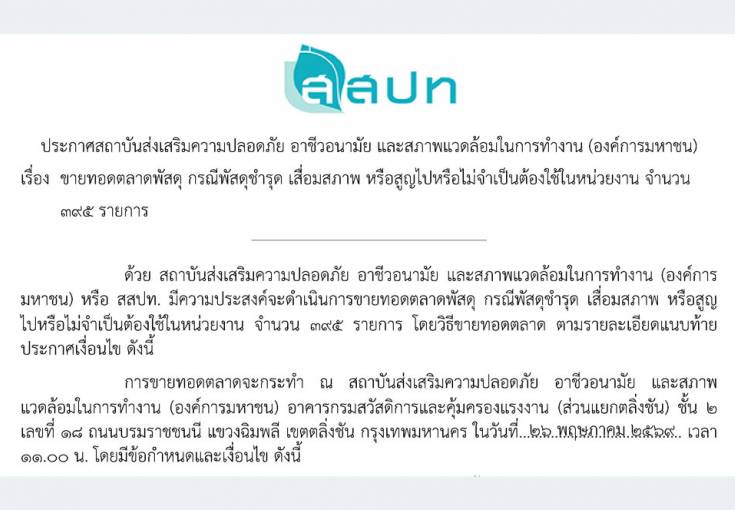



![[ สมัครฟรี ] อบรมหลักสูตรการบริหารจัดการความปลอดภัยผู้รับเหมา (Contractor Safety Management)](/images/thumbnails/mod_minifrontpage/1357_298.jpg)


























Typography
Headings
All HTML headings, <h1> through <h6> are available.
h1. Heading 1
h2. Heading 2
h3. Heading 3
h4. Heading 4
h5. Heading 5
h6. Heading 6
Built with Less
The typographic scale is based on two LESS variables in variables.less: @baseFontSize and @baseLineHeight. The first is the base font-size used throughout and the second is the base line-height. We use those variables and some simple math to create the margins, paddings, and line-heights of all our type and more. Customize them and Bootstrap adapts.
Body copy
Bootstrap's global default font-size is 14px, with a line-height of 1.7em. This is applied to the <body> and all paragraphs. In addition, <p> (paragraphs) receive a bottom margin of half their line-height (9px by default).
Nullam quis risus eget urna mollis ornare vel eu leo. Cum sociis natoque penatibus et magnis dis parturient montes, nascetur ridiculus mus. Nullam id dolor id nibh ultricies vehicula.
<p>...</p>
Lead body copy
Make a paragraph stand out by adding .lead.
Vivamus sagittis lacus vel augue laoreet rutrum faucibus dolor auctor. Duis mollis, est non commodo luctus.
<p class="lead">...</p>
Emphasis
Make use of HTML's default emphasis tags with lightweight styles.
<em>
For emphasizing a snippet of text with stress
The following snippet of text is rendered as italicized text.
<em>rendered as italicized text</em>
<strong>
For emphasizing a snippet of text with important
The following snippet of text is rendered as bold text.
<strong>rendered as bold text</strong>
<small>
For de-emphasizing inline or blocks of text, use the small tag.
This line of text is meant to be treated as fine print.
<p>
<small>This line of text is meant to be treated as fine print.</small>
</p>
Note: Feel free to use <b> and <i> in HTML5. <b> is meant to highlight words or phrases without conveying additional importance while <i> is mostly for voice, technical terms, etc.
Notice Styles
Use the <p> tag with .success, .warning, .info or .error classes.
Nullam quis risus eget urna mollis ornare vel eu leo. Cum sociis natoque penatibus et magnis dis parturient montes, nascetur ridiculus mus.
<p class="success">...</p>
Nullam quis risus eget urna mollis ornare vel eu leo. Cum sociis natoque penatibus et magnis dis parturient montes, nascetur ridiculus mus.
<p class="info">...</p>
Nullam quis risus eget urna mollis ornare vel eu leo. Cum sociis natoque penatibus et magnis dis parturient montes, nascetur ridiculus mus.
<p class="warning">...</p>
Nullam quis risus eget urna mollis ornare vel eu leo. Cum sociis natoque penatibus et magnis dis parturient montes, nascetur ridiculus mus.
<p class="error">...</p>
Abbreviations
Stylized implementation of HTML's <abbr> element for abbreviations and acronyms to show the expanded version on hover. Abbreviations with a title attribute have a light dotted bottom border and a help cursor on hover, providing additional context on hover.
<abbr>
For expanded text on long hover of an abbreviation, include the title attribute.
An abbreviation of the word attribute is attr.
<abbr title="attribute">attr</abbr>
<abbr class="initialism">
Add .initialism to an abbreviation for a slightly smaller font-size.
HTML is the best thing since sliced bread.
<abbr title="attribute" class="initialism">attr</abbr>
Addresses
Present contact information for the nearest ancestor or the entire body of work.
<address>
Preserve formatting by ending all lines with <br>.
Twitter, Inc.
795 Folsom Ave, Suite 600
San Francisco, CA 94107
P: (123) 456-7890
Full Name
This email address is being protected from spambots. You need JavaScript enabled to view it.
<address>
<strong>Twitter, Inc.</strong><br>
795 Folsom Ave, Suite 600<br>
San Francisco, CA 94107<br>
<abbr title="Phone">P:</abbr> (123) 456-7890
</address>
<address>
<strong>Full Name</strong><br>
<a href="mailto:#">This email address is being protected from spambots. You need JavaScript enabled to view it.</a>
</address>
Blockquotes
For quoting blocks of content from another source within your document.
Default blockqoute
Wrap <blockquote> around any HTML as the quote. For straight quotes we recommend a <p>.
Lorem ipsum dolor sit amet, consectetur adipiscing elit. Integer posuere erat a ante.
<blockquote>
<p>Lorem ipsum dolor sit amet, consectetur adipiscing elit. Integer posuere erat a ante.</p>
</blockquote>
Blockquote options
Style and content changes for simple variations on a standard blockquote.
Naming a source
Add <small> tag for identifying the source. Wrap the name of the source work in <cite>.
Lorem ipsum dolor sit amet, consectetur adipiscing elit. Integer posuere erat a ante.
Someone famous in Source Title
<blockquote>
<p>Lorem ipsum dolor sit amet, consectetur adipiscing elit. Integer posuere erat a ante.</p>
<small>Someone famous <cite title="Source Title">Source Title</cite></small>
</blockquote>
Alternate displays
Use .pull-right for a floated, right-aligned blockquote.
Lorem ipsum dolor sit amet, consectetur adipiscing elit. Integer posuere erat a ante.
Someone famous in Source Title
<blockquote class="pull-right">
...
</blockquote>
Lists
Unordered
A list of items in which the order does not explicitly matter.
Lorem ipsum dolor sit amet
Nulla volutpat aliquam velit
Phasellus iaculis neque
Purus sodales ultricies
Vestibulum laoreet porttitor sem
Ac tristique libero volutpat at
Faucibus porta lacus fringilla vel
Eget porttitor lorem
<ul>
<li>...</li>
</ul>
Ordered
A list of items in which the order does explicitly matter (numbered list).
Lorem ipsum dolor sit amet
Consectetur adipiscing elit
Integer molestie lorem at massa
Facilisis in pretium nisl aliquet
Nulla volutpat aliquam velit
Faucibus porta lacus fringilla vel
Aenean sit amet erat nunc
Eget porttitor lorem
<ol>
<li>...</li>
</ol>
Unstyled
A list of items with no list-style or extra left padding.
Lorem ipsum dolor sit amet
Nulla volutpat aliquam velit
Phasellus iaculis neque
Purus sodales ultricies
Vestibulum laoreet porttitor sem
Ac tristique libero volutpat at
Faucibus porta lacus fringilla vel
Eget porttitor lorem
<ul class="unstyled">
<li>...</li>
</ul>
Description
A list of terms with their associated descriptions.
Description lists
A description list is perfect for defining terms.
Euismod
Vestibulum id ligula porta felis euismod semper eget lacinia odio sem nec elit.
Donec id elit non mi porta gravida at eget metus.
Malesuada porta
Etiam porta sem malesuada magna mollis euismod.
<dl>
<dt>...</dt>
<dd>...</dd>
</dl>
Note: Horizontal description lists will truncate terms that are too long to fit in the left column fix text-overflow. In narrower viewports, they will change to the default stacked layout.
Horizontal description
Make terms and descriptions in <dl> line up side-by-side.
Description lists
A description list is perfect for defining terms.
Euismod
Vestibulum id ligula porta felis euismod semper eget lacinia odio sem nec elit.
Donec id elit non mi porta gravida at eget metus.
Malesuada porta
Etiam porta sem malesuada magna mollis euismod.
Felis euismod semper eget lacinia
Fusce dapibus, tellus ac cursus commodo, tortor mauris condimentum nibh, ut fermentum massa justo sit amet risus.
<dl class="dl-horizontal">
<dt>...</dt>
<dd>...</dd>
</dl>
Code
Inline
Wrap inline snippets of code with <code>.
For example, <section> should be wrapped as inline.
For example, <code><section></code> should be wrapped as inline.
Note: Be sure to keep code within <pre> tags as close to the left as possible; it will render all tabs.
You may optionally add the .pre-scrollable class which will set a max-height of 350px and provide a y-axis scrollbar.
Basic block
Use <pre> for multiple lines of code. Be sure to escape any angle brackets in the code for proper rendering.
<p>Sample text here...</p>
<pre>
<p>Sample text here...</p>
</pre>
Prettify
To add colored syntax highlight to the <pre> tag, then use the .prettyprint class or the .prettyprint linenums class.
<?php /** Begin Debug **/ if ($gantry->countModules('debug')) : ?>
<div id="rt-debug">
<div class="rt-container">
<?php echo $gantry->displayModules('debug','standard','standard'); ?>
<div class="clear"></div>
</div>
</div>
<?php /** End Debug **/ endif; ?>
<pre class="prettyprint linenums"><?php /** Begin Debug **/ if ($gantry->countModules('debug')) : ?>
<div id="rt-debug">
<div class="rt-container">
<?php echo $gantry->displayModules('debug','standard','standard'); ?>
<div class="clear"></div>
</div>
</div>
<?php /** End Debug **/ endif; ?></pre>
Tables
Default styles
For basic styling—light padding and only horizontal dividers—add the base class .table to any <table>.
# First Name Last Name Username
1 Mark Otto @mdo
2 Jacob Thornton @fat
3 Larry the Bird @twitter
<table class="table">
…
</table>
Optional classes
Add any of the follow classes to the .table base class.
.table-striped
Adds zebra-striping to any table row within the <tbody> via the :nth-child CSS selector (not available in IE7-IE8).
# First Name Last Name Username
1 Mark Otto @mdo
2 Jacob Thornton @fat
3 Larry the Bird @twitter
<table class="table table-striped">
…
</table>
.table-hover
Enable a hover state on table rows within a <tbody>.
# First Name Last Name Username
1 Mark Otto @mdo
2 Jacob Thornton @fat
3 Larry the Bird @twitter
<table class="table table-hover">
…
</table>
.table-bordered
Add borders and rounded corners to the table.
# First Name Last Name Username
1 Mark Otto @mdo
Mark Otto @TwBootstrap
2 Jacob Thornton @fat
3 Larry the Bird @twitter
<table class="table table-bordered">
…
</table>
.table-condensed
Makes tables more compact by cutting cell padding in half.
# First Name Last Name Username
1 Mark Otto @mdo
2 Jacob Thornton @fat
3 Larry the Bird @twitter
<table class="table table-condensed">
…
</table>
Optional row classes
Use contextual classes to color table rows.
Class Description
.success Indicates a successful or positive action.
.error Indicates a dangerous or potentially negative action.
.info Used as an alternative to the default styles.
# Product Payment Taken Status
1 TB - Monthly 01/04/2012 Approved
2 TB - Monthly 02/04/2012 Declined
3 TB - Monthly 03/04/2012 Pending
4 TB - Monthly 04/04/2012 Call in to confirm
...
<tr class="success">
<td>1</td>
<td>TB - Monthly</td>
<td>01/04/2012</td>
<td>Approved</td>
</tr>
...
Supported table markup
List of supported table HTML elements and how they should be used.
Tag Description
<table> Wrapping element for displaying data in a tabular format
<thead> Container element for table header rows (<tr>) to label table columns
<tbody> Container element for table rows (<tr>) in the body of the table
<tr> Container element for a set of table cells (<td> or <th>) that appears on a single row
<td> Default table cell
<th> Special table cell for column (or row, depending on scope and placement) labels
Must be used within a <thead>
<caption> Description or summary of what the table holds, especially useful for screen readers
<table>
<caption>...</caption>
<thead>
<tr>
<th>...</th>
<th>...</th>
</tr>
</thead>
<tbody>
<tr>
<td>...</td>
<td>...</td>
</tr>
</tbody>
</table>
Forms
Default styles
Individual form controls receive styling, but without any required base class on the <form> or large changes in markup. Results in stacked, left-aligned labels on top of form controls.
Legend
Label name
Type something…
Example block-level help text here. Check me out Submit
<form>
<legend>Legend</legend>
<label>Label name</label>
<input type="text" placeholder="Type something…">
<span class="help-block">Example block-level help text here.</span>
<label class="checkbox">
<input type="checkbox"> Check me out
</label>
<button type="submit" class="btn">Submit</button>
</form>
Optional layouts
Included with Bootstrap are three optional form layouts for common use cases.
Search form
Add .form-search to the form and .search-query to the <input> for an extra-rounded text input.
Search
<form class="form-search">
<input type="text" class="input-medium search-query">
<button type="submit" class="btn">Search</button>
</form>
Inline form
Add .form-inline for left-aligned labels and inline-block controls for a compact layout.
Email
Password
Remember me Sign in
<form class="form-inline">
<input type="text" class="input-small" placeholder="Email">
<input type="password" class="input-small" placeholder="Password">
<label class="checkbox">
<input type="checkbox"> Remember me
</label>
<button type="submit" class="btn">Sign in</button>
</form>
Horizontal form
Right align labels and float them to the left to make them appear on the same line as controls. Requires the most markup changes from a default form:
Add .form-horizontal to the form
Wrap labels and controls in .control-group
Add .control-label to the label
Wrap any associated controls in .controls for proper alignment
Legend
Email
Email
Password
Password
Remember me Sign in
<form class="form-horizontal">
<div class="control-group">
<label class="control-label" for="inputEmail">Email</label>
<div class="controls">
<input type="text" id="inputEmail" placeholder="Email">
</div>
</div>
<div class="control-group">
<label class="control-label" for="inputPassword">Password</label>
<div class="controls">
<input type="password" id="inputPassword" placeholder="Password">
</div>
</div>
<div class="control-group">
<div class="controls">
<label class="checkbox">
<input type="checkbox"> Remember me
</label>
<button type="submit" class="btn">Sign in</button>
</div>
</div>
</form>
Supported form controls
Examples of standard form controls supported in an example form layout.
Inputs
Most common form control, text-based input fields. Includes support for all HTML5 types: text, password, datetime, datetime-local, date, month, time, week, number, email, url, search, tel, and color.
Requires the use of a specified type at all times.
Text input
<input type="text" placeholder="Text input">
Textarea
Form control which supports multiple lines of text. Change row attribute as necessary.
<textarea rows="3"></textarea>
Checkboxes and radios
Checkboxes are for selecting one or several options in a list while radios are for selecting one option from many.
Default (stacked)
Option one is this and that—be sure to include why it's great
Option one is this and that—be sure to include why it's great Option two can be something else and selecting it will deselect option one
<label class="checkbox">
<input type="checkbox" value="">
Option one is this and that—be sure to include why it's great
</label>
<label class="radio">
<input type="radio" name="optionsRadios" id="optionsRadios1" value="option1" checked>
Option one is this and that—be sure to include why it's great
</label>
<label class="radio">
<input type="radio" name="optionsRadios" id="optionsRadios2" value="option2">
Option two can be something else and selecting it will deselect option one
</label>
Inline checkboxes
Add the .inline class to a series of checkboxes or radios for controls appear on the same line.
1 2 3
<label class="checkbox inline">
<input type="checkbox" id="inlineCheckbox1" value="option1"> 1
</label>
<label class="checkbox inline">
<input type="checkbox" id="inlineCheckbox2" value="option2"> 2
</label>
<label class="checkbox inline">
<input type="checkbox" id="inlineCheckbox3" value="option3"> 3
</label>
Selects
Use the default option or specify a multiple="multiple" to show multiple options at once.
12345
<select>
<option>1</option>
<option>2</option>
<option>3</option>
<option>4</option>
<option>5</option>
</select>
<select multiple="multiple">
<option>1</option>
<option>2</option>
<option>3</option>
<option>4</option>
<option>5</option>
</select>
Extending form controls
Adding on top of existing browser controls, Bootstrap includes other useful form components.
Prepended and appended inputs
Add text or buttons before or after any text-based input. Do note that select elements are not supported here.
Default options
Wrap an .add-on and an input with one of two classes to prepend or append text to an input.
@
Username
.00
<div class="input-prepend">
<span class="add-on">@</span><input class="span2" id="prependedInput" size="16" type="text" placeholder="Username">
</div>
<div class="input-append">
<input class="span2" id="appendedInput" size="16" type="text"><span class="add-on">.00</span>
</div>
Search form
Search
Search
<form class="form-search">
<div class="input-append">
<input type="text" class="span2 search-query">
<button type="submit" class="btn">Search</button>
</div>
<div class="input-prepend">
<button type="submit" class="btn">Search</button>
<input type="text" class="span2 search-query">
</div>
</form>
Combined
Use both classes and two instances of .add-on to prepend and append an input.
$
.00
<div class="input-prepend input-append">
<span class="add-on">$</span><input class="span2" id="appendedPrependedInput" size="16" type="text"><span class="add-on">.00</span>
</div>
Buttons instead of text
Instead of a <span> with text, use a .btn to attach a button (or two) to an input.
Go!
Search Options
<div class="input-append">
<input class="span2" id="appendedInputButton" size="16" type="text"><button class="btn" type="button">Go!</button>
</div>
<div class="input-append">
<input class="span2" id="appendedInputButtons" size="16" type="text"><button class="btn" type="button">Search</button><button class="btn" type="button">Options</button>
</div>
Form actions
End a form with a group of actions (buttons). When placed within a .form-horizontal, the buttons will automatically indent to line up with the form controls.
Save changes Cancel
<div class="form-actions">
<button type="submit" class="btn btn-primary">Save changes</button>
<button type="button" class="btn">Cancel</button>
</div>
Help text
Inline and block level support for help text that appears around form controls.
Inline help
Inline help text
<input type="text"><span class="help-inline">Inline help text</span>
Block help
A longer block of help text that breaks onto a new line and may extend beyond one line.
<input type="text"><span class="help-block">A longer block of help text that breaks onto a new line and may extend beyond one line.</span>
Control sizing
Use relative sizing classes like .input-large or match your inputs to the grid column sizes using .span* classes.
Relative sizing
.input-mini
.input-small
.input-medium
.input-large
.input-xlarge
.input-xxlarge
<input class="input-mini" type="text" placeholder=".input-mini">
<input class="input-small" type="text" placeholder=".input-small">
<input class="input-medium" type="text" placeholder=".input-medium">
<input class="input-large" type="text" placeholder=".input-large">
<input class="input-xlarge" type="text" placeholder=".input-xlarge">
<input class="input-xxlarge" type="text" placeholder=".input-xxlarge">
Note: In future versions, we'll be altering the use of these relative input classes to match our button sizes. For example, .input-large will increase the padding and font-size of an input.
Uneditable inputs
Present data in a form that's not editable without using actual form markup.
Some value here
<span class="input-xlarge uneditable-input">Some value here</span>
Form control states
Provide feedback to users or visitors with basic feedback states on form controls and labels.
Input focus
We remove the default outline styles on some form controls and apply a box-shadow in its place for :focus.
This is focused...
<input class="input-xlarge" id="focusedInput" type="text" value="This is focused...">
Disabled inputs
Add the disabled attribute on an input to prevent user input and trigger a slightly different look.
Disabled input here…
<input class="input-xlarge" id="disabledInput" type="text" placeholder="Disabled input here..." disabled>
Validation states
Bootstrap includes validation styles for error, warning, and success messages. To use, add the appropriate class to the surrounding .control-group.
Input with warning
Something may have gone wrong
Input with error
Please correct the error
Input with info
Username is taken
Input with success
Woohoo!
<div class="control-group warning">
<label class="control-label" for="inputWarning">Input with warning</label>
<div class="controls">
<input type="text" id="inputWarning">
<span class="help-inline">Something may have gone wrong</span>
</div>
</div>
<div class="control-group error">
<label class="control-label" for="inputError">Input with error</label>
<div class="controls">
<input type="text" id="inputError">
<span class="help-inline">Please correct the error</span>
</div>
</div>
<div class="control-group info">
<label class="control-label" for="inputError">Input with info</label>
<div class="controls">
<input type="text" id="inputError">
<span class="help-inline">Username is taken</span>
</div>
</div>
<div class="control-group success">
<label class="control-label" for="inputSuccess">Input with success</label>
<div class="controls">
<input type="text" id="inputSuccess">
<span class="help-inline">Woohoo!</span>
</div>
</div>
Buttons
Default buttons
Button styles can be applied to anything with the .btn class applied. However, typically you'll want to apply these to only <a> and <button> elements for the best rendering.
Button class="" Description
Default btn Standard gray button with gradient
Primary btn btn-primary Provides extra visual weight and identifies the primary action in a set of buttons
Info btn btn-info Used as an alternative to the default styles
Success btn btn-success Indicates a successful or positive action
Warning btn btn-warning Indicates caution should be taken with this action
Danger btn btn-danger Indicates a dangerous or potentially negative action
Inverse btn btn-inverse Alternate dark gray button, not tied to a semantic action or use
Link btn btn-link Deemphasize a button by making it look like a link while maintaining button behavior
Cross browser compatibility
IE9 doesn't crop background gradients on rounded corners, so we remove it. Related, IE9 jankifies disabled button elements, rendering text gray with a nasty text-shadow that we cannot fix.
Button sizes
Fancy larger or smaller buttons? Add .btn-large, .btn-small, or .btn-mini for additional sizes.
Large button Large button
Default button Default button
Small button Small button
Mini button Mini button
<p>
<button class="btn btn-large btn-primary" type="button">Large button</button>
<button class="btn btn-large" type="button">Large button</button>
</p>
<p>
<button class="btn btn-primary" type="button">Default button</button>
<button class="btn" type="button">Default button</button>
</p>
<p>
<button class="btn btn-small btn-primary" type="button">Small button</button>
<button class="btn btn-small" type="button">Small button</button>
</p>
<p>
<button class="btn btn-mini btn-primary" type="button">Mini button</button>
<button class="btn btn-mini" type="button">Mini button</button>
</p>
Create block level buttons—those that span the full width of a parent— by adding .btn-block.
Block level button Block level button
<button class="btn btn-large btn-block btn-primary" type="button">Block level button</button>
<button class="btn btn-large btn-block" type="button">Block level button</button>
Disabled state
Make buttons look unclickable by fading them back 50%.
Anchor element
Add the .disabled class to <a> buttons.
Primary link Link
<a href="#" class="btn btn-large btn-primary disabled">Primary link</a>
<a href="#" class="btn btn-large disabled">Link</a>
Note: We use .disabled as a utility class here, similar to the common .active class, so no prefix is required.
Button element
Add the disabled attribute to <button> buttons.
Primary button Button
<button type="button" class="btn btn-large btn-primary disabled" disabled="disabled">Primary button</button>
<button type="button" class="btn btn-large" disabled>Button</button>
One class, multiple tags
Use the .btn class on an <a>, <button>, or <input> element.
Link Button Input Submit
<a class="btn" href="/">Link</a>
<button class="btn" type="submit">Button</button>
<input class="btn" type="button" value="Input">
<input class="btn" type="submit" value="Submit">
As a best practice, try to match the element for your context to ensure matching cross-browser rendering. If you have an input, use an <input type="submit"> for your button.
Icons
Font Awesome
Font Awesome is a pictographic language of web-related actions which delivers over 200 icons. The Font Awesome webfont, CSS, and LESS files are licensed under CC BY 3.0 and you can find the full examples of usage at Font Awesome - http://fortawesome.github.com/Font-Awesome
Add .icon-CLASS_NAME to any element, best used with a <span>.
Web Icons
icon-adjust
icon-asterisk
icon-ban-circle
icon-bar-chart
icon-barcode
icon-beaker
icon-beer
icon-bell
icon-bell-alt
icon-bolt
icon-book
icon-bookmark
icon-bookmark-empty
icon-briefcase
icon-bullhorn
icon-calendar
icon-camera
icon-camera-retro
icon-certificate
icon-check
icon-check-empty
icon-circle
icon-circle-blank
icon-cloud
icon-cloud-download
icon-cloud-upload
icon-coffee
icon-cog
icon-cogs
icon-comment
icon-comment-alt
icon-comments
icon-comments-alt
icon-credit-card
icon-dashboard
icon-desktop
icon-download
icon-download-alt
icon-edit
icon-envelope
icon-envelope-alt
icon-exchange
icon-exclamation-sign
icon-external-link
icon-eye-close
icon-eye-open
icon-facetime-video
icon-fighter-jet
icon-film
icon-filter
icon-fire
icon-flag
icon-folder-close
icon-folder-open
icon-folder-close-alt
icon-folder-open-alt
icon-food
icon-gift
icon-glass
icon-globe
icon-group
icon-hdd
icon-headphones
icon-heart
icon-heart-empty
icon-home
icon-inbox
icon-info-sign
icon-key
icon-leaf
icon-laptop
icon-legal
icon-lemon
icon-lightbulb
icon-lock
icon-unlock
icon-magic
icon-magnet
icon-map-marker
icon-minus
icon-minus-sign
icon-mobile-phone
icon-money
icon-move
icon-music
icon-off
icon-ok
icon-ok-circle
icon-ok-sign
icon-pencil
icon-picture
icon-plane
icon-plus
icon-plus-sign
icon-print
icon-pushpin
icon-qrcode
icon-question-sign
icon-quote-left
icon-quote-right
icon-random
icon-refresh
icon-remove
icon-remove-circle
icon-remove-sign
icon-reorder
icon-reply
icon-resize-horizontal
icon-resize-vertical
icon-retweet
icon-road
icon-rss
icon-screenshot
icon-search
icon-share
icon-share-alt
icon-shopping-cart
icon-signal
icon-signin
icon-signout
icon-sitemap
icon-sort
icon-sort-down
icon-sort-up
icon-spinner
icon-star
icon-star-empty
icon-star-half
icon-tablet
icon-tag
icon-tags
icon-tasks
icon-thumbs-down
icon-thumbs-up
icon-time
icon-tint
icon-trash
icon-trophy
icon-truck
icon-umbrella
icon-upload
icon-upload-alt
icon-user
icon-user-md
icon-volume-off
icon-volume-down
icon-volume-up
icon-warning-sign
icon-wrench
icon-zoom-in
icon-zoom-out
Text Editor Icons
icon-file
icon-file-alt
icon-cut
icon-copy
icon-paste
icon-save
icon-undo
icon-repeat
icon-text-height
icon-text-width
icon-align-left
icon-align-center
icon-align-right
icon-align-justify
icon-indent-left
icon-indent-right
icon-font
icon-bold
icon-italic
icon-strikethrough
icon-underline
icon-link
icon-paper-clip
icon-columns
icon-table
icon-th-large
icon-th
icon-th-list
icon-list
icon-list-ol
icon-list-ul
icon-list-alt
Directional Icons
icon-angle-left
icon-angle-right
icon-angle-up
icon-angle-down
icon-arrow-down
icon-arrow-left
icon-arrow-right
icon-arrow-up
icon-caret-down
icon-caret-left
icon-caret-right
icon-caret-up
icon-chevron-down
icon-chevron-left
icon-chevron-right
icon-chevron-up
icon-circle-arrow-down
icon-circle-arrow-left
icon-circle-arrow-right
icon-circle-arrow-up
icon-double-angle-left
icon-double-angle-right
icon-double-angle-up
icon-double-angle-down
icon-hand-down
icon-hand-left
icon-hand-right
icon-hand-up
icon-circle
icon-circle-blank
Video Player Icons
icon-play-circle
icon-play
icon-pause
icon-stop
icon-step-backward
icon-fast-backward
icon-backward
icon-forward
icon-fast-forward
icon-step-forward
icon-eject
icon-fullscreen
icon-resize-full
icon-resize-small
Social Icons
icon-phone
icon-phone-sign
icon-facebook
icon-facebook-sign
icon-twitter
icon-twitter-sign
icon-github
icon-github-alt
icon-github-sign
icon-linkedin
icon-linkedin-sign
icon-pinterest
icon-pinterest-sign
icon-google-plus
icon-google-plus-sign
icon-sign-blank
Medical Icons
icon-ambulance
icon-beaker
icon-h-sign
icon-hospital
icon-medkit
icon-plus-sign-alt
icon-stethoscope
icon-user-md
<span class="icon-CLASS_NAME">
...
</span>
<span class="icon-download">
...
</span>
The documented typography above is a modified version of the reference guide available at: http://twitter.github.com/bootstrap/base-css.html